How to Build a Mega Menu in Shopify Dawn Theme Using Code

In this tutorial, we’ll guide you through the process of creating a MegaMenu in Shopify’s Dawn theme using only code. By directly modifying the theme’s header.liquid file and adding custom MegaMenu code, you can achieve an organized and user-friendly menu system. Best of all, this method does not require any third-party apps.
What is a Mega Menu?
A MegaMenu is an advanced dropdown menu that displays categories and subcategories in a visually structured way. It is particularly useful for e-commerce stores with extensive product catalogs, as it improves navigation and enhances the user experience.
We’ll create a MegaMenu with dropdown submenus for general categories and a featured MegaMenu for “Men’s Trends” and “Women’s Trends,” complete with links and images. You can customize the structure as needed for your store.
7 Steps to Create Mega Menu in Shopify Dawn Theme
In this guide, we will create a Mega Menu using the Shopify Dawn theme in seven easy steps. We’ll design a Mega Menu with dropdown submenus for general categories, as well as a featured Mega Menu for “Men’s Trends” and “Women’s Trends,” complete with links and images.
1. Plan Your Mega Menu Structure
Before diving into code, take a moment to outline your MegaMenu structure. Here’s an example:
- Main Menu Items: Clothing, Accessories, Sale
- Submenu Items: Nested categories like Men, Women, Kids under “Clothing.”
- Mega Menu Items: Men’s Trends and Women’s Trends, featuring links and images.
2. Configure Your Shopify Navigation
1. Access Navigation Settings
- Log in to your Shopify Admin.
- Go to Online Store > Navigation.
2. Set Up a New Menu
- Add a new menu or edit an existing one.
- Nest submenu items under their respective main menu items to create a hierarchy.

Note:
The default menu in Shopify’s Dawn theme is managed through the header.liquid file, which includes other elements like the logo, cart, and search functionality.
To ensure your theme remains functional, we’ll create a new custom HeaderMegamenu section to integrate both the default header features and the new MegaMenu.
3. Add a Custom Mega Menu Section
1. Create a New Section
- Navigate to Online Store > Themes > Edit Code.
- In the Sections folder, click Add a new section and name it Megamenu.
2. Copy the Default Header Code
- Open the header.liquid file in the Sections folder.
- Copy its contents to the new Megamenu.liquid file to retain the default functionality (logo, cart, search, etc.).
3. Replace the Default Menu Code
- Identify the following block in the header.liquid file:
Find below code where in default menu come from and replace it with our code. It will be in header Tag. After find you can comment it and check it will hide menu in header.liquid file.
    {%- liquid
      if section.settings.menu != blank
        if section.settings.menu_type_desktop == 'dropdown'
          render 'header-dropdown-menu'
        elsif section.settings.menu_type_desktop != 'drawer'
          render 'header-mega-menu'
        endif
      endif
%}
In default menu code from snippets file as mention below are ‘header- dropdown-menu’ or ‘header-mega-menu’.
Now comment or remove code and replace with below code
In Below Code ‘ single ‘ and “ Double” quotes[Text Wrapping Break]Liquid does not support escape characters like the backslash (). To fix this, you can use double quotes (“) for the Liquid expression and single quotes (‘) for the string inside it
Explanation:
Double Quotes for Liquid Strings: Use double quotes around the Liquid strings (“MEN’S TRENDS” and “WOMEN’S TRENDS”) since single quotes (‘) inside the string do not conflict.
Consistent Quotes: Ensure attributes (class, etc.) use double quotes for consistency with HTML standards
Note: In below Code I want to add megamenu features added in MEN’S TRENDS and WOMEN’S TRENDS change as per you name in menu condition code.
<div class="main-menu">
    <ul class="horizontal-menu">
        <!-- Dynamically Loop Over All Menu Links -->
        {%- for link in linklists[section.settings.regular_links].links -%}
        <!-- in Below li have our MEN'S TRENDS and WOMEN'S TRENDS is for adding Drawer and rest of have dropdown and Some condition for add class in to specific tag -->
        <li class="menu-item {% if link.links.size > 0 %}has-dropdown{% endif %} {% if link.title == " MEN 'S
            TRENDS" or link.title == "WOMEN'S TRENDS " %}has-drawer{% endif %}
            {%
            if link.title == 'New Arrivals' %}new-arrivals{% endif %} {% if
            link.title == 'Lookbook' %}lookbook{% endif %}">
            <a href="{{ link.url }}">{{ link.title }}</a>
            <!-- If the Link Has Sub-links (Dropdown) -->
            <!-- below condition check if MEN'S TRENDS and WOMEN'S TRENDS menu item is not then only link display -->
            {%- if link.links.size > 0 and link.title != "MEN'S TRENDS" and link.title != "WOMEN'S TRENDS" -%}
            <ul class="dropdown-menu">
                {%- for sublink in link.links -%}
                <li><a href="{{ sublink.url }}">{{ sublink.title }}</a></li>
                {%- endfor -%}
            </ul>
            {%- endif -%}
            <!-- Mega Menu for Special Categories like Men and Women -->
            <!-- below condition check if MEN'S TRENDS and WOMEN'S TRENDS menu item is there then also add image with link -->
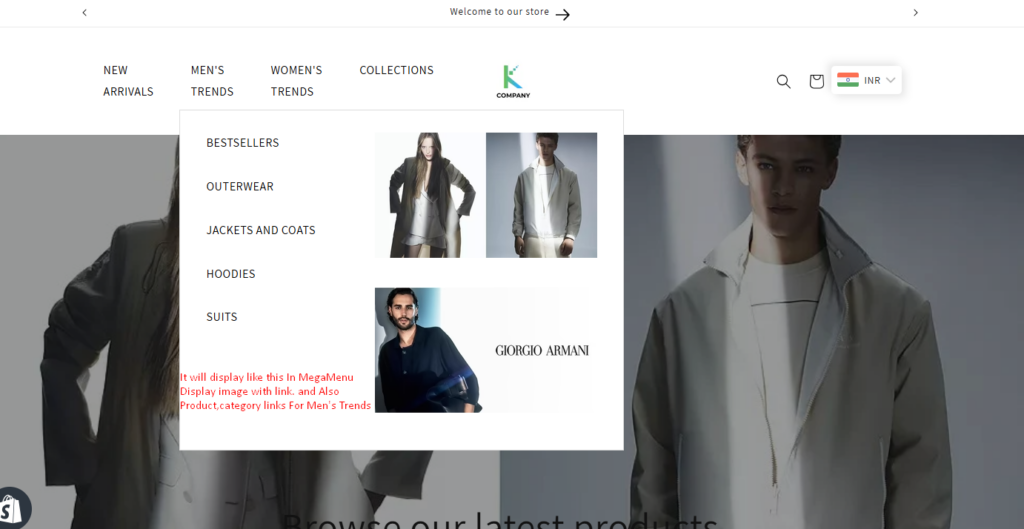
            {%- if link.title == "MEN'S TRENDS" -%}
            <div class="drawer-menu">
                <div class="drawer-left">
                    <ul>
                        {%- for sublink in link.links -%}
                        <li><a href="{{ sublink.url }}">{{ sublink.title
                                }}</a></li>
                        {%- endfor -%}
                    </ul>
                </div>
                <div class="drawer-right">
                    <a href="{{ section.settings.men_image_1_link }}">
                        <img src="{{ section.settings.men_image_1 | image_url: width: 300 }}" alt="Men Image 1">
                    </a>
                    <a href="{{ section.settings.men_image_2_link }}">
                        <img src="{{ section.settings.men_image_2 | image_url: width: 300 }}" alt="Men Image 2">
                    </a>
                </div>
            </div>
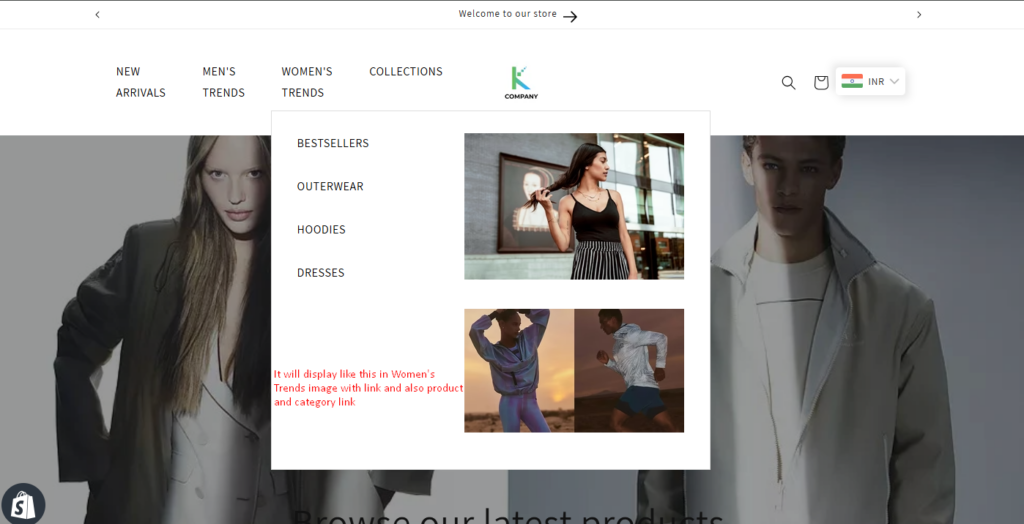
            {%- elsif link.title == "WOMEN'S TRENDS" -%}
            <div class="drawer-menu">
                <div class="drawer-left">
                    <ul>
                        {%- for sublink in link.links -%}
                        <li><a href="{{ sublink.url }}">{{ sublink.title
                                }}</a></li>
                        {%- endfor -%}
                    </ul>
                </div>
                <div class="drawer-right">
                    <a href="{{ section.settings.women_image_1_link }}">
                        <img src="{{ section.settings.women_image_1 | image_url: width: 300 }}" alt="Women Image 1">
                    </a>
                    <a href="{{ section.settings.women_image_2_link }}">
                        <img src="{{ section.settings.women_image_2 | image_url: width: 300 }}" alt="Women Image 2">
                    </a>
                </div>
            </div>
            {%- endif -%}
        </li>
        {%- endfor -%}
    </ul>
</div>
4. Find code below and add script after that
</{% if section.settings.sticky_header_type != 'none' %}sticky-header{% else %}div{% endif %}>After this add javacript code for Hover Menu open default is on click menu open so add below after above code.
<script>

    let items = document.querySelector(".header__inline-menu").querySelectorAll("details");
    let dropdownItems = document.querySelector(".header__submenu");
    items.forEach(item => {
        item.addEventListener("mouseenter", () => {
           item.setAttribute("open", true);
            let ulElement = item.querySelector("ul");
            if (ulElement !== null) {
                ulElement.addEventListener("mouseleave", () => {
                    item.removeAttribute("open");
                });
            }
        });
        item.addEventListener("focus", () => {
            item.setAttribute("open", true);
        });
        item.addEventListener("blur", () => {
            item.removeAttribute("open");
        });
        item.addEventListener("mouseenter", () => {
            item.setAttribute("open", "");
        });
        item.addEventListener("mouseleave", () => {
            item.removeAttribute("open");
        });
    });
    if (dropdownItems !== null) {
        dropdownItems.addEventListener("mouseleave", () => {
            items.forEach(item => {
                item.removeAttribute("open");
            });
        });
    }
</script>
5. Add Custom CSS
Define the visual structure and layout of your MegaMenu by adding custom CSS.
- Adjust styles as needed to fit your branding and menu hierarchy.
- Add the CSS to your theme’s assets folder or directly in the theme.css file.
<style>

    /* Main Horizontal Menu */

    .horizontal-menu {

        list-style: none;
        padding: 0;
        margin: 0;
        display: flex;

        /* Horizontal Layout */
    }

    .horizontal-menu .menu-item {
        position: relative;
        margin-right: 20px;
        /* Space between menu items */

    }

    .horizontal-menu .menu-item a {
        text-decoration: none;
        color: #000;
        font-size: 16px;
        padding: 10px 15px;
        display: block;

    }

    /* Regular Dropdown Menu */

    .menu-item.has-dropdown .dropdown-menu {
        display: none;
        /* Hide dropdown menu by default */

        position: absolute;
        top: 100%;
        left: 0;
        background: #fff;
        border: 1px solid #ddd;
        padding: 10px;
        z-index: 10;
    }

    .menu-item.has-dropdown:hover .dropdown-menu {
        display: block;
        /* Show dropdown menu on hover */
    }

    .dropdown-menu li {
        margin-bottom: 5px;
    }

    .dropdown-menu li a {
        font-size: 14px;
        color: #333;
    }
    /* Mega Menu for Men and Women (Wide Drawer) */

    .menu-item.has-drawer .drawer-menu {

        display: none;

        /* Hide mega menu by default */
        position: absolute;
        top: 100%;
        left: 0;
        background: #fff;
        border: 1px solid #ddd;
        padding: 20px;
        width: 600px;
        display: flex;
        justify-content: space-between;
        z-index: 10;
    }

    .menu-item.has-drawer:hover .drawer-menu {
        display: flex;
        /* Show mega menu on hover */
    }
    /* Ensuring Mega Menus Close After Hover */
    .menu-item.has-drawer .drawer-menu {
        visibility: hidden;
        /* Ensures the mega menu is hidden by default */
    }
    .menu-item.has-drawer:hover .drawer-menu {

        visibility: visible;

        /* Shows the mega menu on hover */

        display: flex;
        /* Ensures display is flex for proper layout */

    }

    /* Ensuring No Auto-Opening for Special Links (New Arrivals, Lookbook) */

    .menu-item.new-arrivals,
    .menu-item.lookbook {
        position: relative;

    }

    .menu-item.new-arrivals .dropdown-menu,
    .menu-item.lookbook .dropdown-menu {
        display: none;
        /* Hide dropdown by default */
    }
    .menu-item.new-arrivals:hover .dropdown-menu,
    .menu-item.lookbook:hover .dropdown-menu {
        display: block;

        /* Show dropdown only on hover */
    }
    .drawer-left ul {
        list-style: none;
        padding: 0;
        margin: 0;
    }
    .drawer-left li {
        margin-bottom: 10px;
    }
    .drawer-right img {
        width: 100%;
        height: auto;
        margin-bottom: 10px;
    }
</style>
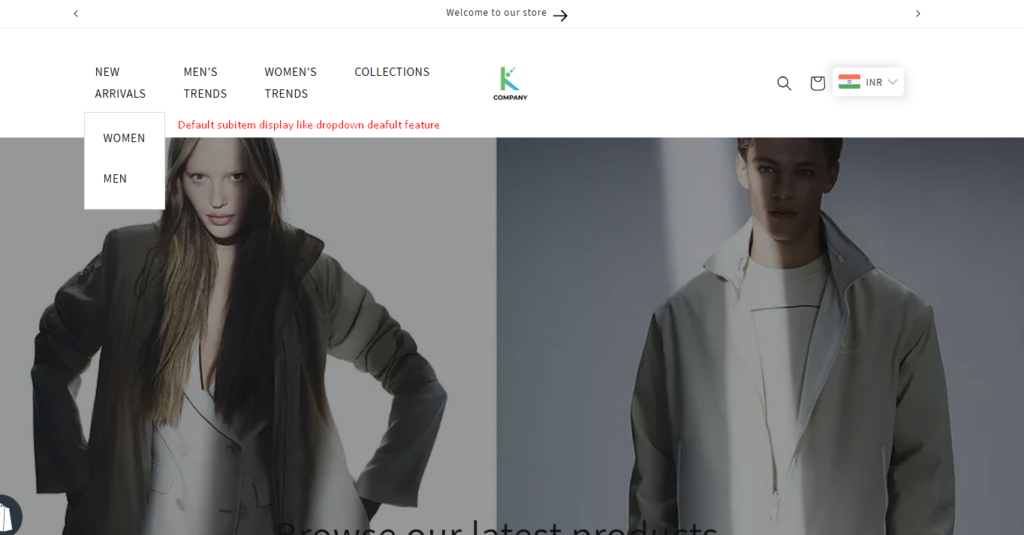
Above CSS will help default submenu item will display link dropdown and Men’s Trend or Women’s Trend will display like Drawer mega menu
6. Update the Schema
After Adding CSS Also Replace Default schema with new Megamenu Schema
{%- schema -%}
{
  "name": "Main Mega Menu",
  "settings": [
     {
      "type": "select",
      "id": "logo_position",
      "options": [
        {
          "value": "top-left",
          "label": "t:sections.header.settings.logo_position.options__2.label"
        },
        {
          "value": "top-center",
          "label": "t:sections.header.settings.logo_position.options__3.label"
        },
        {
          "value": "middle-left",
          "label": "t:sections.header.settings.logo_position.options__1.label"
        },
        {
          "value": "middle-center",
          "label": "t:sections.header.settings.logo_position.options__4.label"
        }
      ],
      "default": "middle-left",
      "label": "t:sections.header.settings.logo_position.label",
      "info": "t:sections.header.settings.logo_help.content"
    },
    {
      "type": "link_list",
      "id": "regular_links",
      "label": "Regular Menu Links"
    },
        {
      "type": "select",
      "id": "sticky_header_type",
      "options": [
        {
          "value": "none",
          "label": "t:sections.header.settings.sticky_header_type.options__1.label"
        },
        {
          "value": "on-scroll-up",
          "label": "t:sections.header.settings.sticky_header_type.options__2.label"
        },
        {
          "value": "always",
          "label": "t:sections.header.settings.sticky_header_type.options__3.label"
        },
        {
          "value": "reduce-logo-size",
          "label": "t:sections.header.settings.sticky_header_type.options__4.label"
        }
      ],
      "default": "on-scroll-up",
      "label": "t:sections.header.settings.sticky_header_type.label"
    },
    {
      "type": "checkbox",
      "id": "show_line_separator",
      "default": true,
      "label": "t:sections.header.settings.show_line_separator.label"
    },
     {
      "type": "header",
      "content": "t:sections.header.settings.mobile_layout.content"
    },
    {
      "type": "select",
      "id": "mobile_logo_position",
      "options": [
        {
          "value": "center",
          "label": "t:sections.header.settings.mobile_logo_position.options__1.label"
        },
        {
          "value": "left",
          "label": "t:sections.header.settings.mobile_logo_position.options__2.label"
        }
      ],
      "default": "center",
      "label": "t:sections.header.settings.mobile_logo_position.label"
    },
    {
      "type": "header",
      "content": "t:sections.all.spacing"
    },
    {
      "type": "range",
      "id": "margin_bottom",
      "min": 0,
      "max": 100,
      "step": 4,
      "unit": "px",
      "label": "t:sections.header.settings.margin_bottom.label",
      "default": 0
    },
    {
      "type": "header",
      "content": "t:sections.all.padding.section_padding_heading"
    },
    {
      "type": "range",
      "id": "padding_top",
      "min": 0,
      "max": 36,
      "step": 4,
      "unit": "px",
      "label": "t:sections.all.padding.padding_top",
      "default": 20
    },
    {
      "type": "range",
      "id": "padding_bottom",
      "min": 0,
      "max": 36,
      "step": 4,
      "unit": "px",
      "label": "t:sections.all.padding.padding_bottom",
      "default": 20
    },
    {
      "type": "image_picker",
      "id": "men_image_1",
      "label": "Men Image 1"
    },
    {
      "type": "url",
      "id": "men_image_1_link",
      "label": "Men Image 1 Link"
    },
    {
      "type": "image_picker",
      "id": "men_image_2",
      "label": "Men Image 2"
    },
    {
      "type": "url",
      "id": "men_image_2_link",
      "label": "Men Image 2 Link"
    },
    {
      "type": "image_picker",
      "id": "women_image_1",
      "label": "Women Image 1"
    },
    {
      "type": "url",
      "id": "women_image_1_link",
      "label": "Women Image 1 Link"
    },
    {
      "type": "image_picker",
      "id": "women_image_2",
      "label": "Women Image 2"
    },
    {
      "type": "url",
      "id": "women_image_2_link",
      "label": "Women Image 2 Link"
    },
  ],
  "presets": [
    {
      "name": "Mega Menu",
      "category": "Header"
    }
  ]
}
{%- endschema -%}
7. Mega Menu Customization
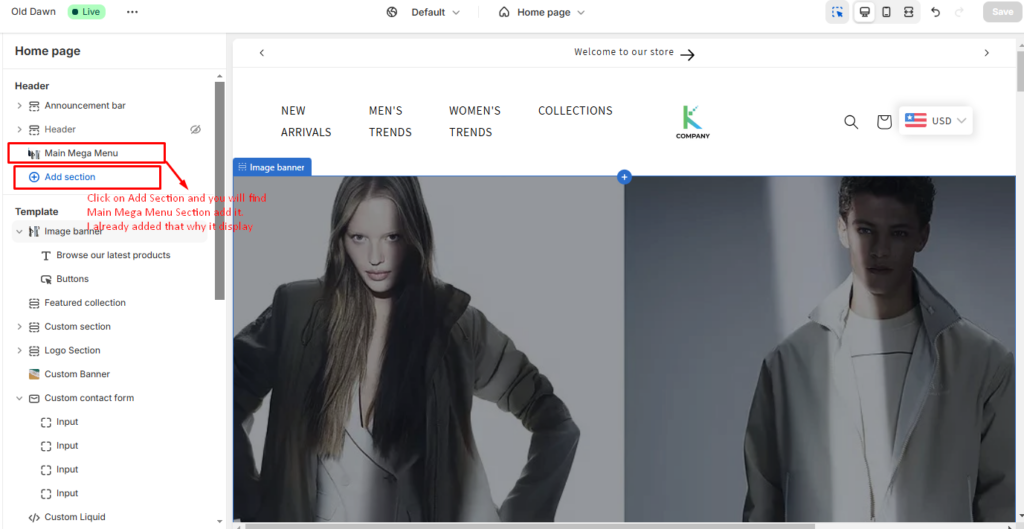
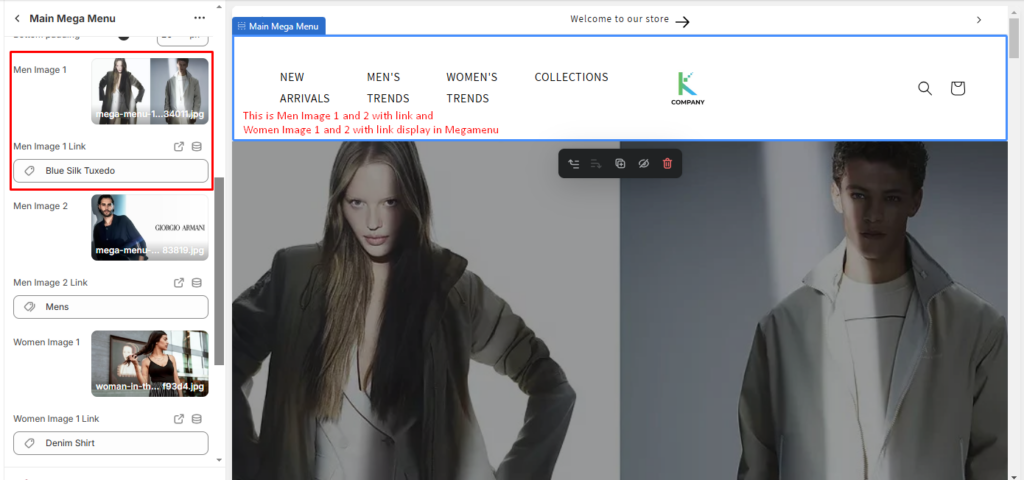
After completing above step we made a full New Header Mega menu section, now you can see in customize.
- 1. You have to add your new Mega Menu section and default header section to display none.
- Select mega menu, we created in step 2.
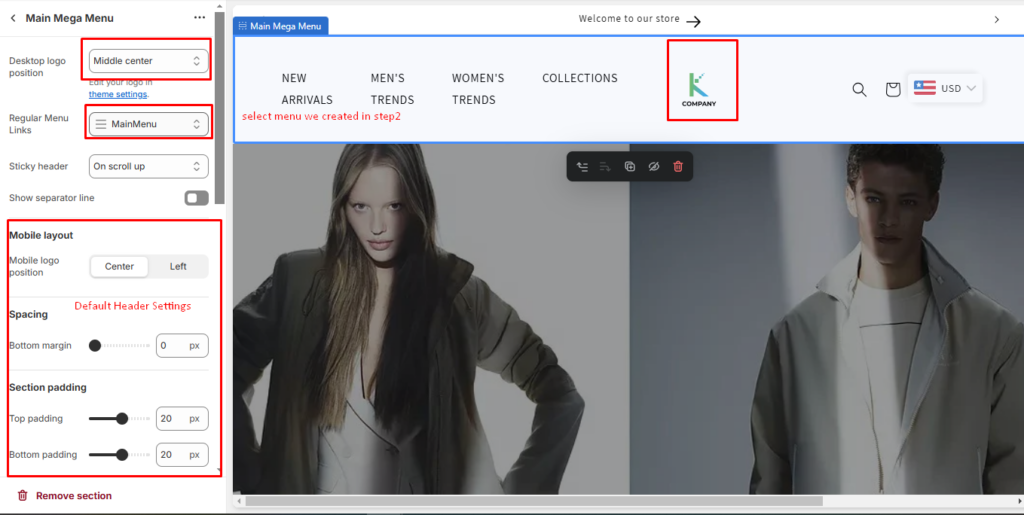
- Select Men and women megamenu image and set Link of it.
Final Look
Here’s an example of the final MegaMenu appearance with dropdowns for general categories and a visually rich MegaMenu for featured items like “Men’s Trends” and “Women’s Trends.”
Conclusion
By following the easy steps outlined above, you can create a Mega Menu in Shopify’s Dawn theme without relying on third-party apps. This approach gives you full control over the design and functionality, ensuring that your store’s navigation is both user-friendly and visually appealing.
If you have any questions or facing any errors while creating a Mega Menu in Shopify’s Dawn theme, we’re here to help. We provide Shopify development services, and our team has experience working with a wide range of industries, including some top leaders. We can build your store according to your specific requirements.
I'm currently a WordPress & Shopify developer at Samarpan Infotech, I'm passionate about web development. Beyond coding, I have a curious mind for world affairs and geopolitics, while also enjoying the occasional chess match in my spare time.