How to Create a Upsell Offer in Shopify Cart Drawer without an App

An upsell offer is a strategic product recommendation presented to customers, encouraging them to purchase a more expensive, on-sale, or trending item. This tactic can significantly boost sales by promoting higher-value products at the point of purchase.
In this tutorial, we will guide you through the process of adding a product upsell offer to your Shopify cart drawer. This feature allows for dynamic updates using theme settings, enabling you or your admin to change the upsell product and title directly through the Shopify theme customizer.
4 Steps to Create Cart Upsells In Shopify Store
Here are 4 simple steps to create an upsell offer in your Shopify cart drawer without using apps.
1. Create Theme Settings for Customizable Upsell Product and Title
The initial step involves defining settings in the theme customizer, allowing for easy changes to the upsell product and title. You will need to add a section to your settings_schema.json file. Here’s how to add it;
- Navigate to Online Store > Themes in your Shopify admin.
- Click on Actions > Edit Code.
- Open the settings_schema.json file.
Add the following code snippet to enable customization of the upsell product handle and title:
File name: settings_schema.json
[                     {
      "name": "Upsell Settings",
      "settings": [
        {
          "type": "text",
          "id": "upsell_title",
          "label": "Upsell Title",
          "default": "Try New Drop Edition Sneaker 👟"
        },
        {
          "type": "text",
          "id": "upsell_product_handle",
          "label": "Upsell Product Handle",
          "default": "skechers-and-asics" //
        }
      ]
 }
]
2. Modify cart-drawer.liquid to Display the Customizable Upsell Product
After setting up the customization settings, you need to modify your cart-drawer.liquid file. This step allows you to display the upsell offer in the cart drawer and ensures it updates based on selections made in the theme customizer. Instructions;
- In your Shopify admin, go to Online Store > Themes, then click on Actions > Edit Code.
- Locate and open the snippets/cart-drawer.liquid file.
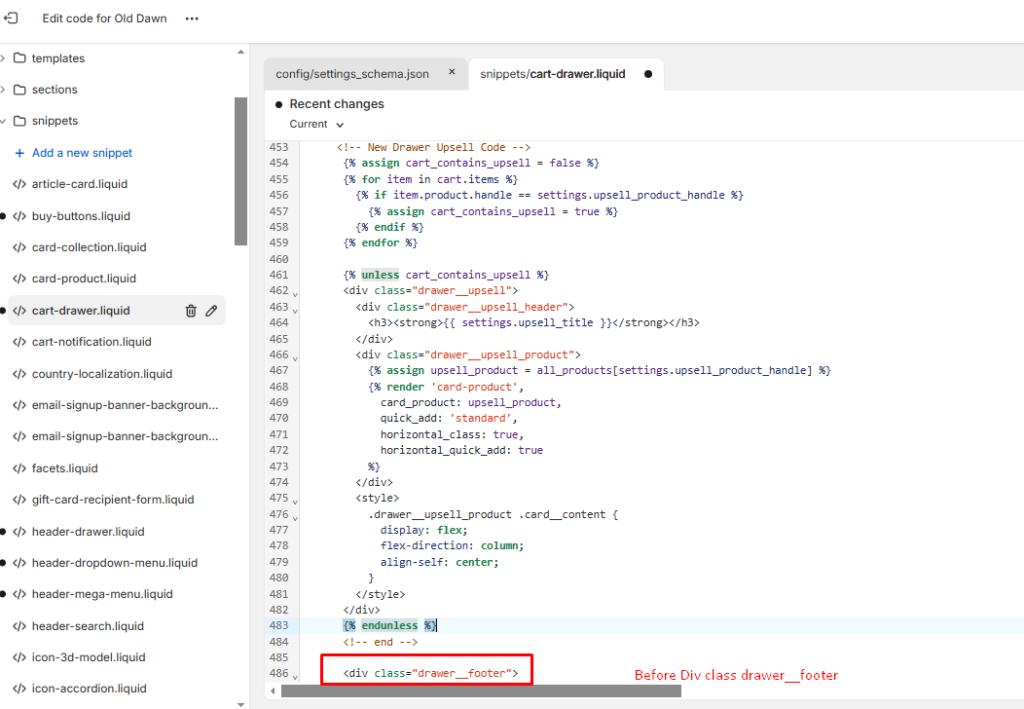
- Search drawer__footer class in snippets/cart-drawer.liquid use below code you need to add to display the upsell offer based on the product handle and title set in the theme customizer “Above drawer__footer class div”.
 <!-- New Drawer Upsell Code -->
     {% assign cart_contains_upsell = false %}
     {% for item in cart.items %}
       {% if item.product.handle == settings.upsell_product_handle %}
         {% assign cart_contains_upsell = true %}
       {% endif %}
     {% endfor %}
     {% unless cart_contains_upsell %}
     <div class="drawer__upsell">
       <div class="drawer__upsell_header">
         <h3><strong>{{ settings.upsell_title }}</strong></h3>
       </div>
       <div class="drawer__upsell_product">
         {% assign upsell_product = all_products[settings.upsell_product_handle] %}
         {% render 'card-product',
           card_product: upsell_product,
           quick_add: 'standard',
           horizontal_class: true,
           horizontal_quick_add: true
         %}
       </div>
       <style>
         .drawer__upsell_product .card__content {
           display: flex;
           flex-direction: column;
           align-self: center;
         }
       </style>
     </div>
     {% endunless %}
<!-- end --> 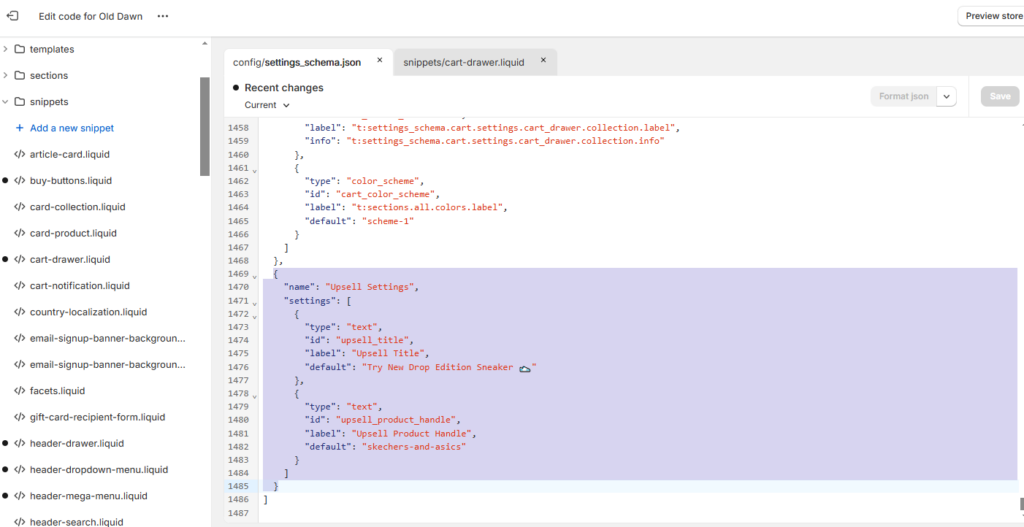
3. Customize the Upsell Product and Title via Theme Editor
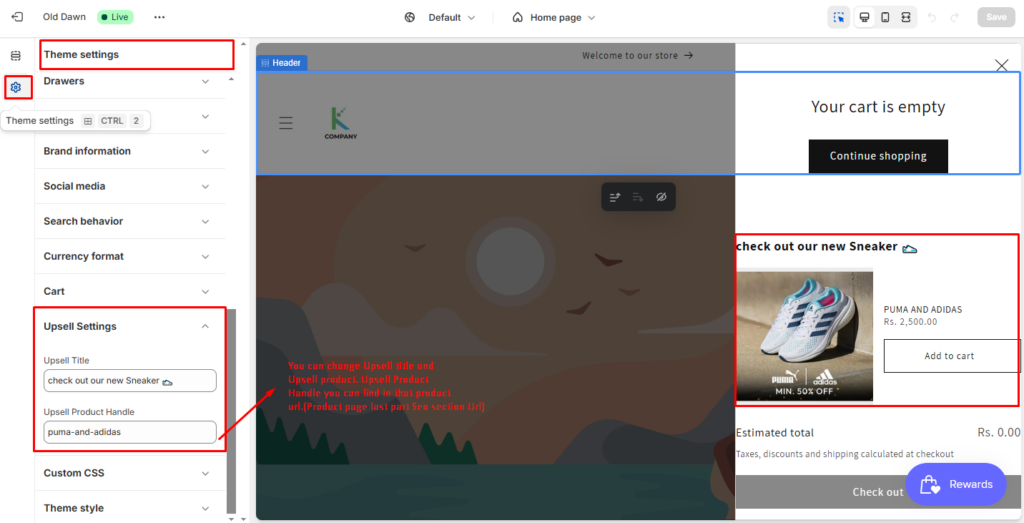
With the code updated, you can now customize the upsell product and its title without further coding. Here’s how:
- Access your Shopify admin panel.
- Navigate to Online Store > Themes and click on Customize for your active theme (e.g., Dawn).
- Under the Theme Settings tab, locate the new section titled Upsell Settings.
- Enter a new title for your upsell offer (e.g., “Try Our Latest Sneaker Collection”).
- Input the product handle of the upsell product (the handle is part of the product’s URL, e.g., skechers-and-asics).
- Save your changes.
Now, your cart drawer will reflect any updates made through the theme customizer regarding both the upsell product and its title.
4. Test the Upsell Offer
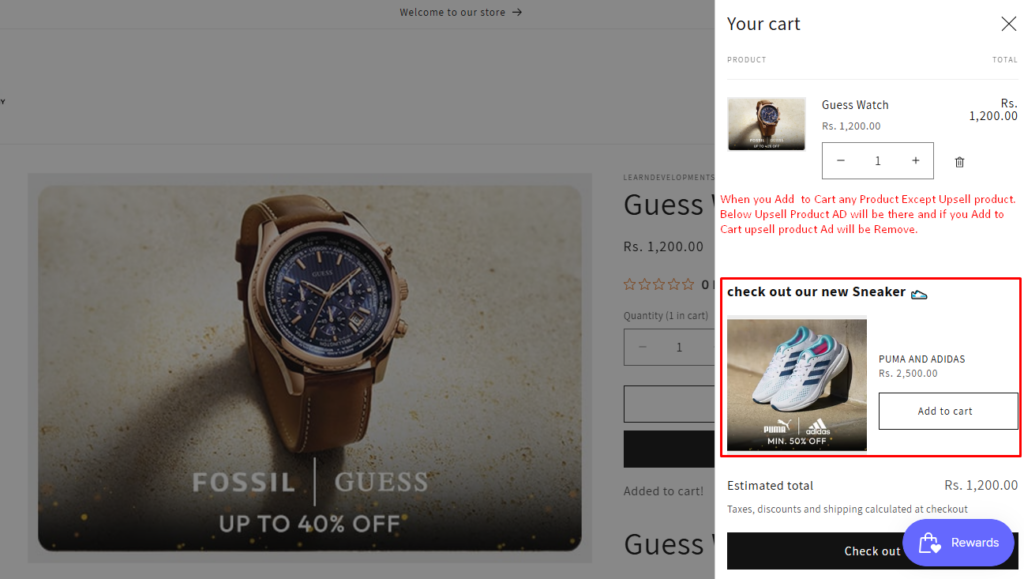
After saving your settings, it’s time to test whether your upsell offer works as intended. Instructions;
- Add items to your cart that do not include the upsell product.
- Open the cart drawer.
- If the cart does not contain the upsell product, you should see the configured upsell offer displaying both the product and title.
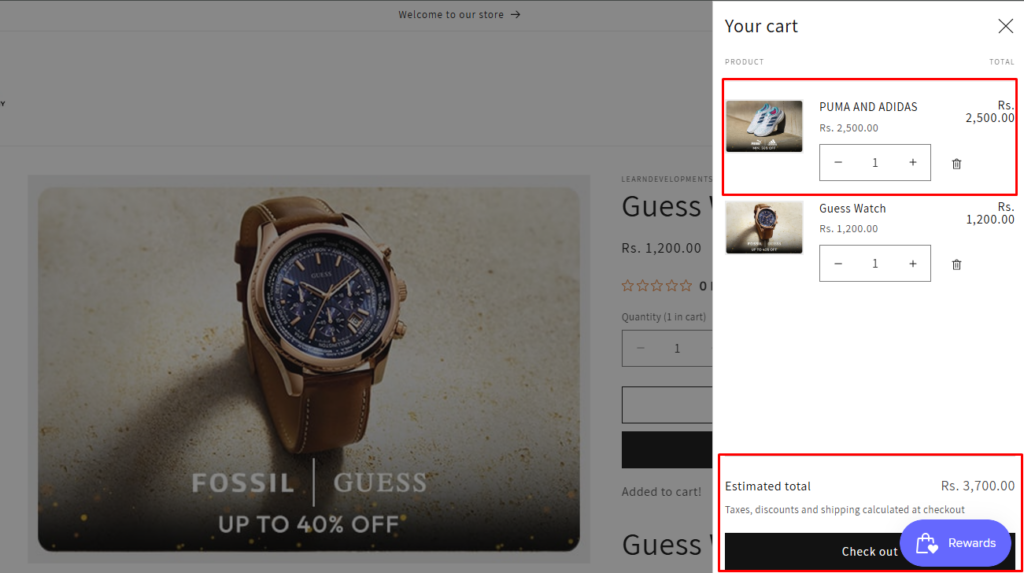
- If you add the upsell product to your cart, this offer will no longer appear.
If you Add to Cart Upsell Product look like Below
Why Use This Method?
- Simplicity: There’s no need for additional apps or plugins; everything is managed directly within Shopify’s admin interface.
- Flexibility: Admins can change both the upsell product and title as needed without any coding knowledge.
- User Experience: By customizing based on specific product handles, you ensure that relevant products are showcased at optimal times.
Conclusion
Creating a customizable upsell offer in your Shopify cart without relying on external applications is an effective way to enhance sales opportunities. By leveraging Shopify’s built-in theme settings and making minor edits to template files, you can establish a dynamic upselling experience that is straightforward to manage. This method not only saves time but also provides full control over your upselling strategy, allowing you to effectively promote related products or special offers.
If you have any questions or require technical assistance with your Shopify store, our experienced Shopify developers is here to help! Don’t hesitate to reach out for support.
I'm currently a WordPress & Shopify developer at Samarpan Infotech, I'm passionate about web development. Beyond coding, I have a curious mind for world affairs and geopolitics, while also enjoying the occasional chess match in my spare time.